Personalise Control Center by Rearranging and Resizing Buttons
About this QuickTip
Discover how to maximise your productivity with iOS 18 by customising your Control Centre. In this video, I’ll show you how easy it is to rearrange, resize, and add controls, making your iPhone more efficient and tailored to your needs. From grouping your most-used tools for quicker access to enhancing one-handed use, this guide covers the benefits of a streamlined Control Centre. Learn how to get the most out of these features and improve your daily iPhone experience with these simple steps.
Transcript
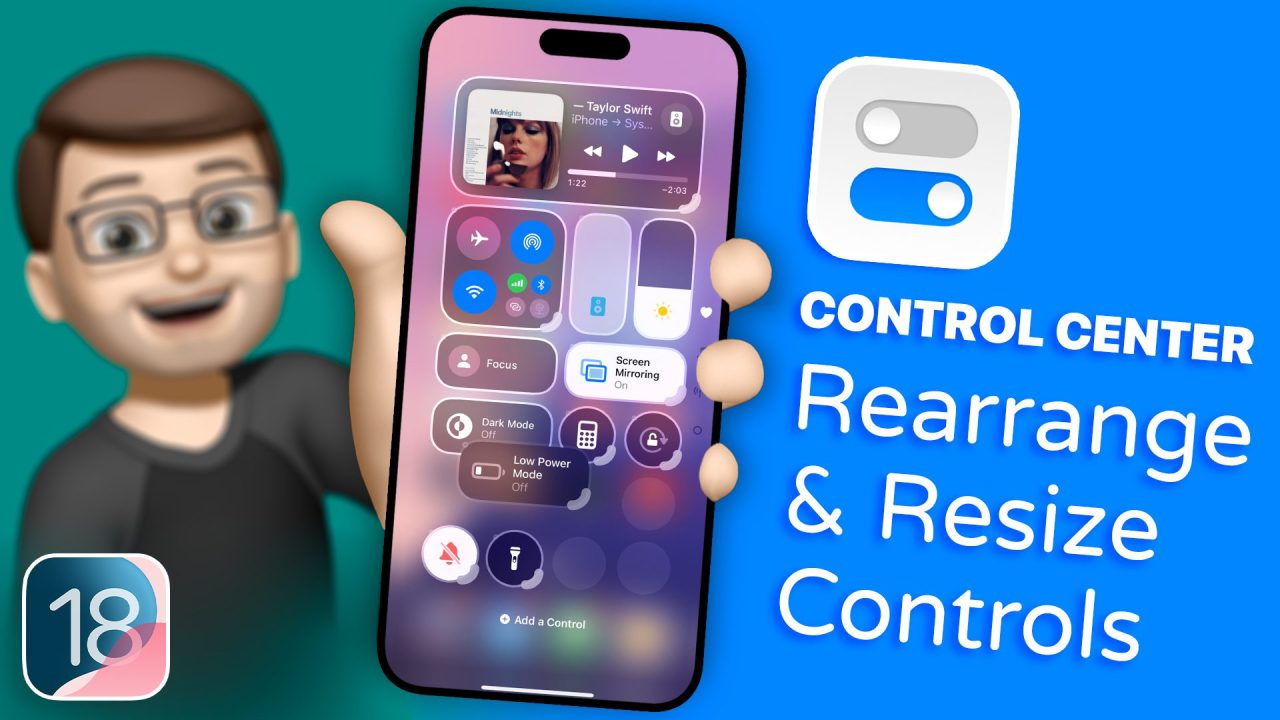
One of my favourite new additions to Control Centre in iOS 18 is how simple it is to rearrange and change how your Control Centre looks, making the most useful controls easier to access. If I simply swipe down from the top right corner of my phone to go into Control Centre, I can then tap and hold the screen to enter editing mode. At this stage, just like icons on the Home Screen, I can tap and drag to rearrange any of the controls in Control Centre. That means I can perhaps relocate ones I use more often to the bottom of the screen, or I can make it look visually more satisfying by grouping things together.
You may also notice in the corner that little kind of corner round bracket-type thing—that’s a grab handle. If I tap and pull there, I can then expand or contract the size of my buttons. This can have several benefits. For example, if you’ve got lots of simple circular buttons, it can be hard to recognise what’s what at a glance. If I pull it to extend slightly, the buttons become a bit wider, but crucially, they now have the name of the control and its current status alongside it. I can also make things bigger again if I wish, and I can make some widgets fill almost the entire page if needed.
Don’t forget, of course, you can add other controls and buttons into Control Centre simply by pressing the button at the bottom down here. If I do that, I can very quickly add a new control, and it will appear just like all the others. As you can see, I like to have certain controls near the bottom of my iPhone screen; that makes them easier to access when you’re using the device with just one hand. There are tons of new things both in Control Centre and across your iPhone now that you’ve got iOS 18. If you want to learn more, please do check out my YouTube channel underneath this video, where there are hundreds more quick tips waiting for you there.
Technical details: This QuickTip was recorded on an iPhone 15 Pro Max running iOS 18.1 in August 2024.
The content used in this video is intended for educational and informational purposes only. All rights to the images, music, clips, and other media used belong to their respective owners. I do not claim ownership over any third-party content used. This video has not been authorised, sponsored, or otherwise approved by Apple Inc. iPhone is a trademark of Apple Inc., registered in the U.S. and other countries and regions. iOS is a registered trademark of Cisco Systems Inc. Whilst I have done my best to list all applicable trademarks for this video, in the (hopefully unlikely) event that I have missed any you can find a full list of trademarks registered to Apple Inc. on their website. Finally, please note that whilst every effort has been made to ensure the information contained within this video was correct at time of publication, please be aware that as future updates and software changes occur some or all elements of this video may become outdated. I will endeavour to remove videos which are completely obsolete so as not to cause confusion!