Turn your Handwriting into 3D Graphs
About this QuickTip
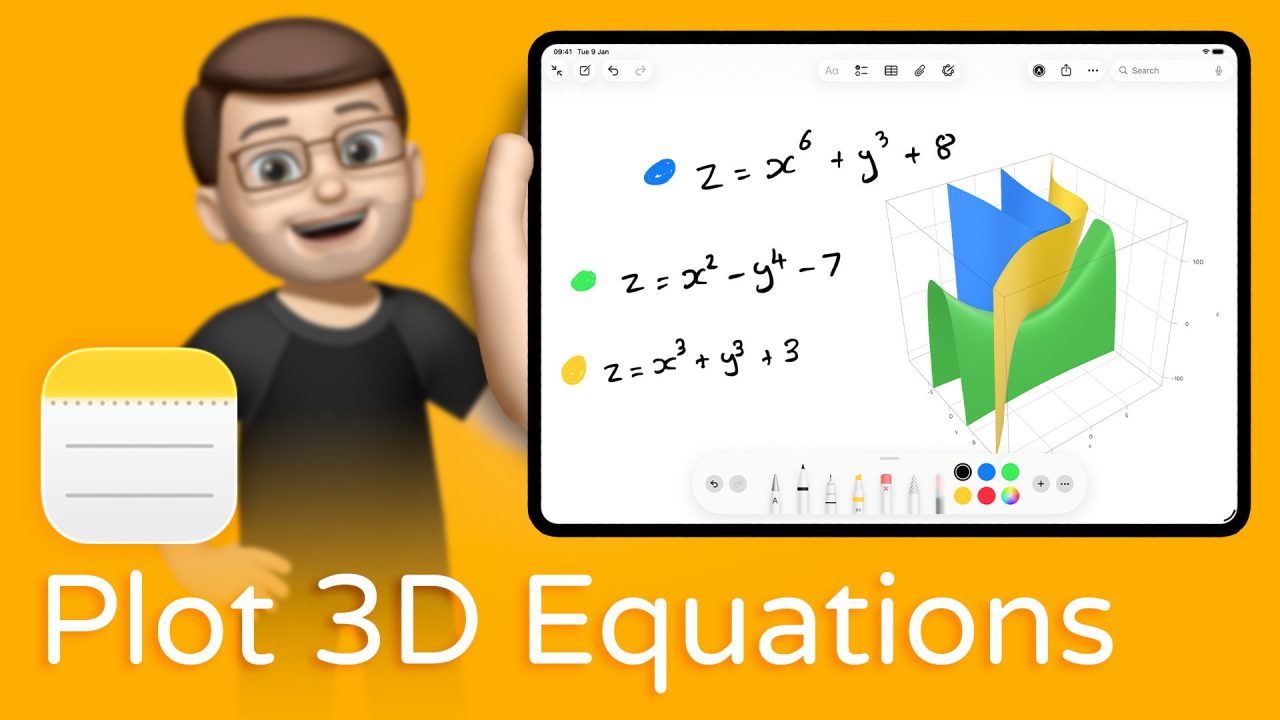
Did you know the Notes app can now create 3D graphs from your handwriting? In iPadOS 26, simply write out an equation with your stylus, and your iPad will convert it into a live, rotatable 3D graph. Adjust numbers, plot multiple lines, and explore your data visually – all without leaving Notes!
Transcript
A really fun feature in the Notes app is that if you use your stylus to draw on the screen, it can convert your handwriting, solve equations and even plot graphs for you. Here, I’ve got a little X and Y graph, and you can see it’s plotted it on the screen for me.
But in iPadOS 26, this goes a step further – in fact, it goes into a whole new dimension – because we can now plot 3D graphs. Now, I’m very much a primary school teacher, and we don’t do a huge amount of 3D graphs in primary school. But what you can do here is start writing down equations that model into a 3D graph, usually ones that include Z, X and Y axes.
When you finish writing, your iPad will offer to create a 3D graph for you. Tap on it, and it’ll plot it straight away. Don’t forget, you can tap any of the numbers you’ve written and use the little scroll bar on the top to manipulate that number – the graph will change in real time as you do. It’s such an interesting way of modelling data live on your screen.
Once the 3D graph has been plotted, you can use your finger to rotate, zoom in, or zoom out. You can also use the floating options button to tweak a few things – for example, you can change the range of the axes. All of these values can be adjusted by simply swiping sideways, and the graph will update instantly.
And just like with 2D graphs, you can plot multiple lines on the same set of axes. So if I write another equation underneath, it’ll ask whether I want to add it to a new chart or my existing one. You can see these two graphs actually fit together quite well – that was an accident, but a happy one! Then we can move the view around in 3D to visualise the data effectively.
This is just one of many new features in iPadOS 26 that your iPad can do, but they’re quite hidden. Unless you knew they existed, you might never find them. Don’t worry though – if you check out my YouTube channel, you’ll find hundreds of new things your iPad can do. Make sure you subscribe while you’re there too. That’s it – I’ll see you in the next QuickTip.
Technical details: This QuickTip was recorded on an 11″ iPad Pro (M4) running iPadOS 26.2 in November 2025.
The content used in this video is intended for educational and informational purposes only. All rights to the images, music, clips, and other media used belong to their respective owners. I do not claim ownership over any third-party content used. This video has not been authorised, sponsored, or otherwise approved by Apple Inc. iPad and iPadOS are trademarks of Apple Inc., registered in the U.S. and other countries and regions. Whilst I have done my best to list all applicable trademarks for this video, in the (hopefully unlikely) event that I have missed any you can find a full list of trademarks registered to Apple Inc. on their website. Finally, please note that whilst every effort has been made to ensure the information contained within this video was correct at time of publication, please be aware that as future updates and software changes occur some or all elements of this video may become outdated. I will endeavour to remove videos which are completely obsolete so as not to cause confusion!